Guide
User guide
This covers everything the app does, screen by screen.
Getting started
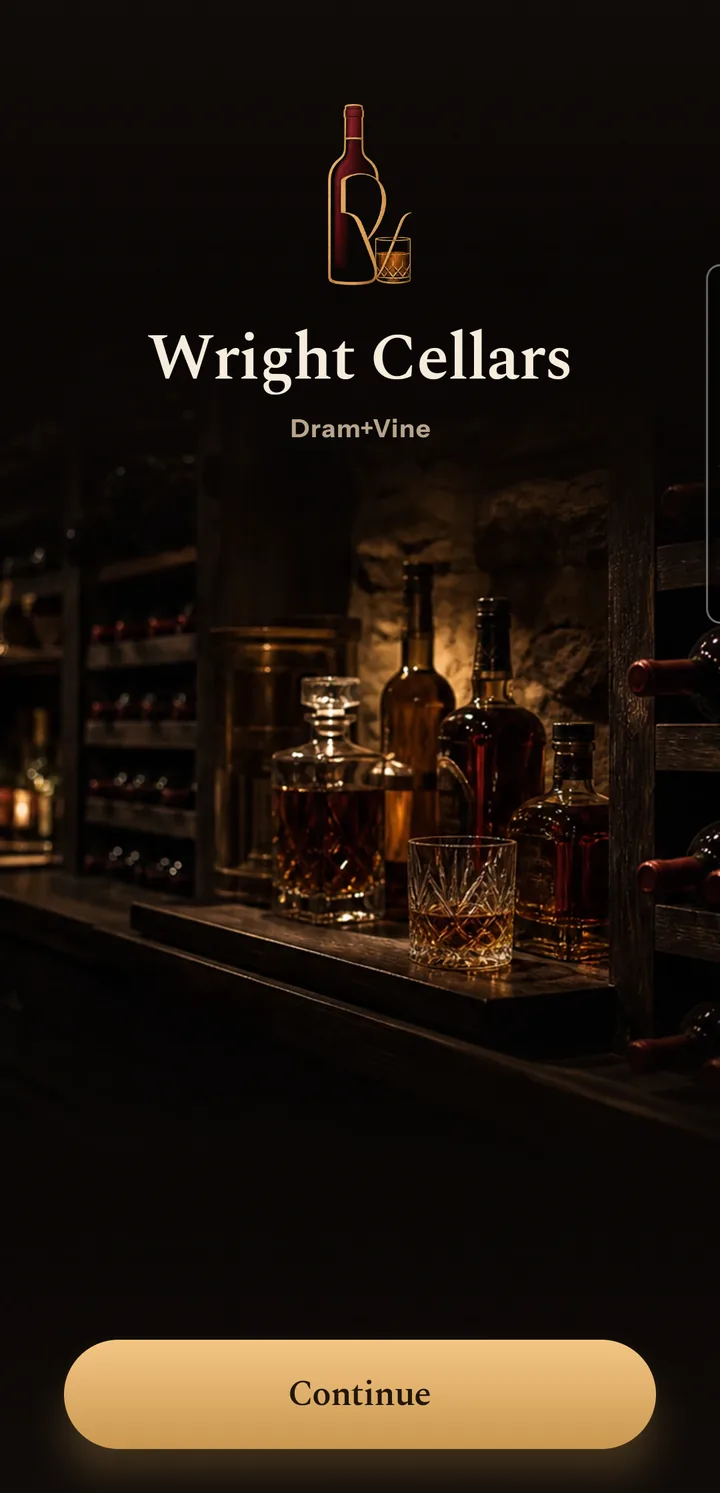
The app opens on a photograph of a cellar with a Continue button. There is no account. The privacy policy lists what leaves the phone.
Continue leads to four pages: scanning, the amber fields, the status buttons, the oxidation clock. Skip ends them, and Settings → Help → How Dram+Vine works shows them again.
Android asks for notification permission the first time you confirm a bottle. Decline and you get no drink-by reminders.
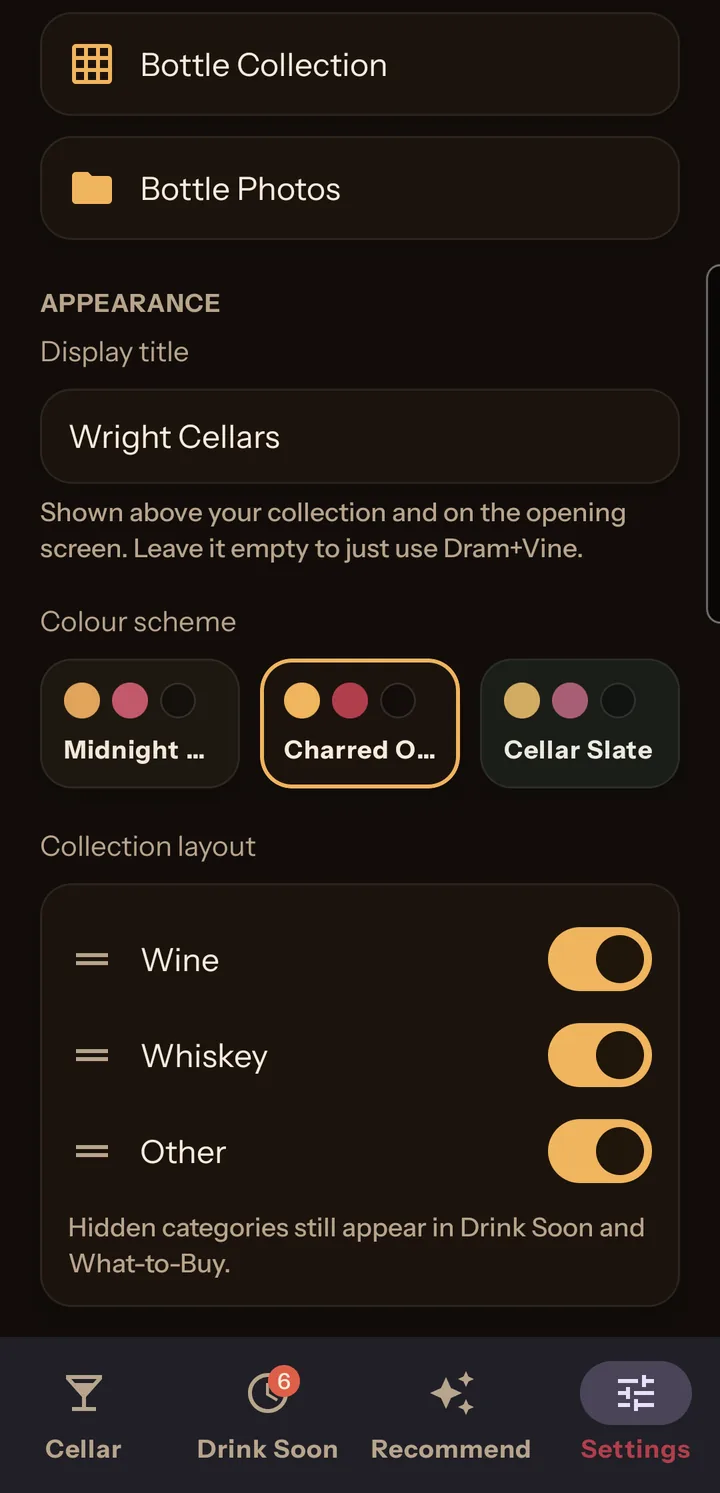
Name your shelf under Settings → Appearance → Display title. It heads the opening screen and your collection. Leave it empty and the app uses its own name.
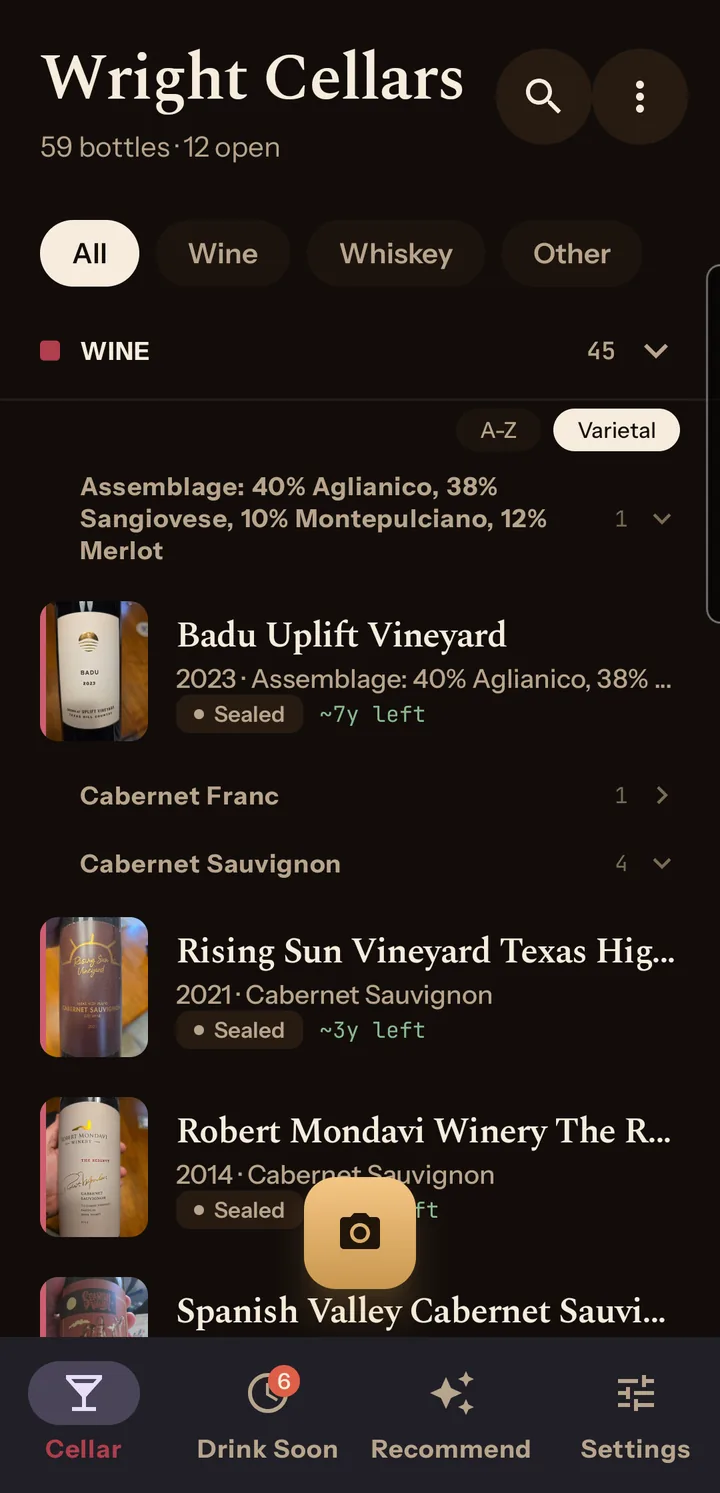
Four tabs run along the bottom. Cellar is everything you own, Drink Soon is what needs drinking with the count on its icon, Recommend is what to open or buy, and Settings is everything else.
Adding a bottle
Scanning a label
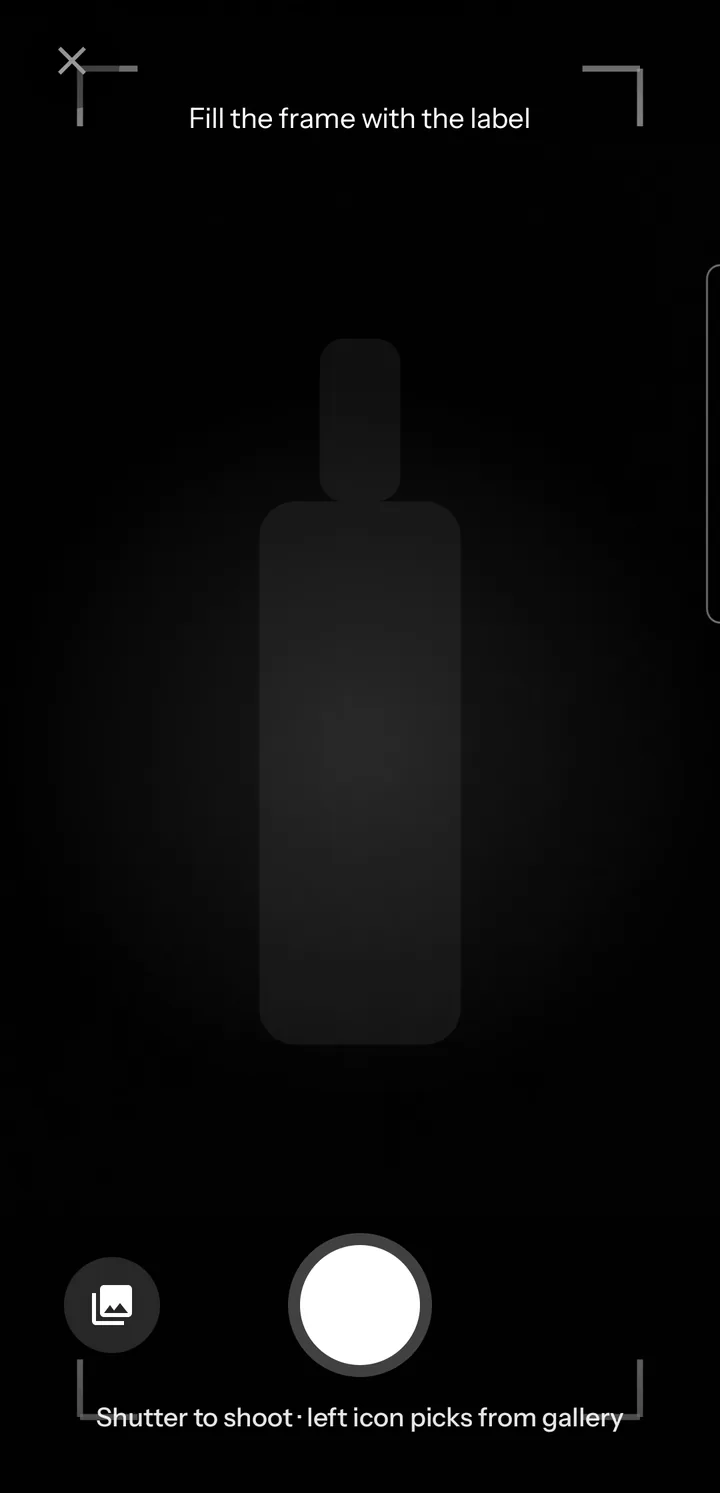
The camera button is at the bottom of the Cellar screen. Fill the frame with the label and press it. The gallery icon beside the shutter takes a photo you already have, and with the camera declined the screen offers Choose a photo instead.
Tap the label to focus there. Focus stays put, with a Focus locked chip, until you long-press or tap the chip.
The screen then asks for the back label. That is usually where the ABV is printed, and on some wines the vintage. Focus resets for this shot. Shoot it, or Skip if there is nothing on it worth reading. The two are read together, and both photos stay on the bottle.
Reading a label needs a connection. Offline, the screen says You're offline and offers Try again or Enter one manually. Browsing, status changes, pours and photos work offline.
Entering one by hand
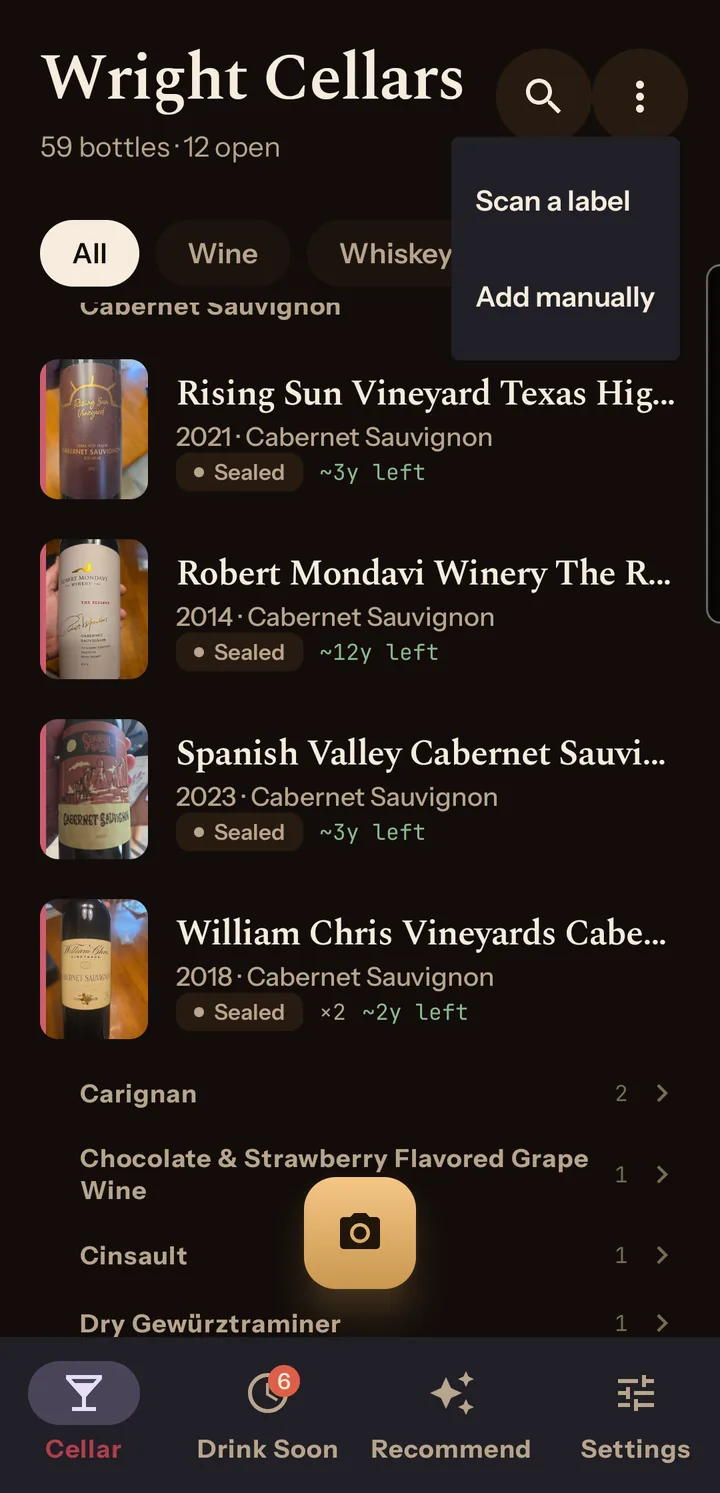
Tap the ⋮ at the top of the Cellar screen and choose Add manually for the scan form with nothing filled in. On an empty cellar it is also under the main button as Or enter one manually.
The confirm screen
Everything the model read is here and editable. The card at the top reads Gemini read this label. Uncertain fields are amber with a LOW CONFIDENCE chip. If it could not read the photo at all the card says Couldn't read this label.
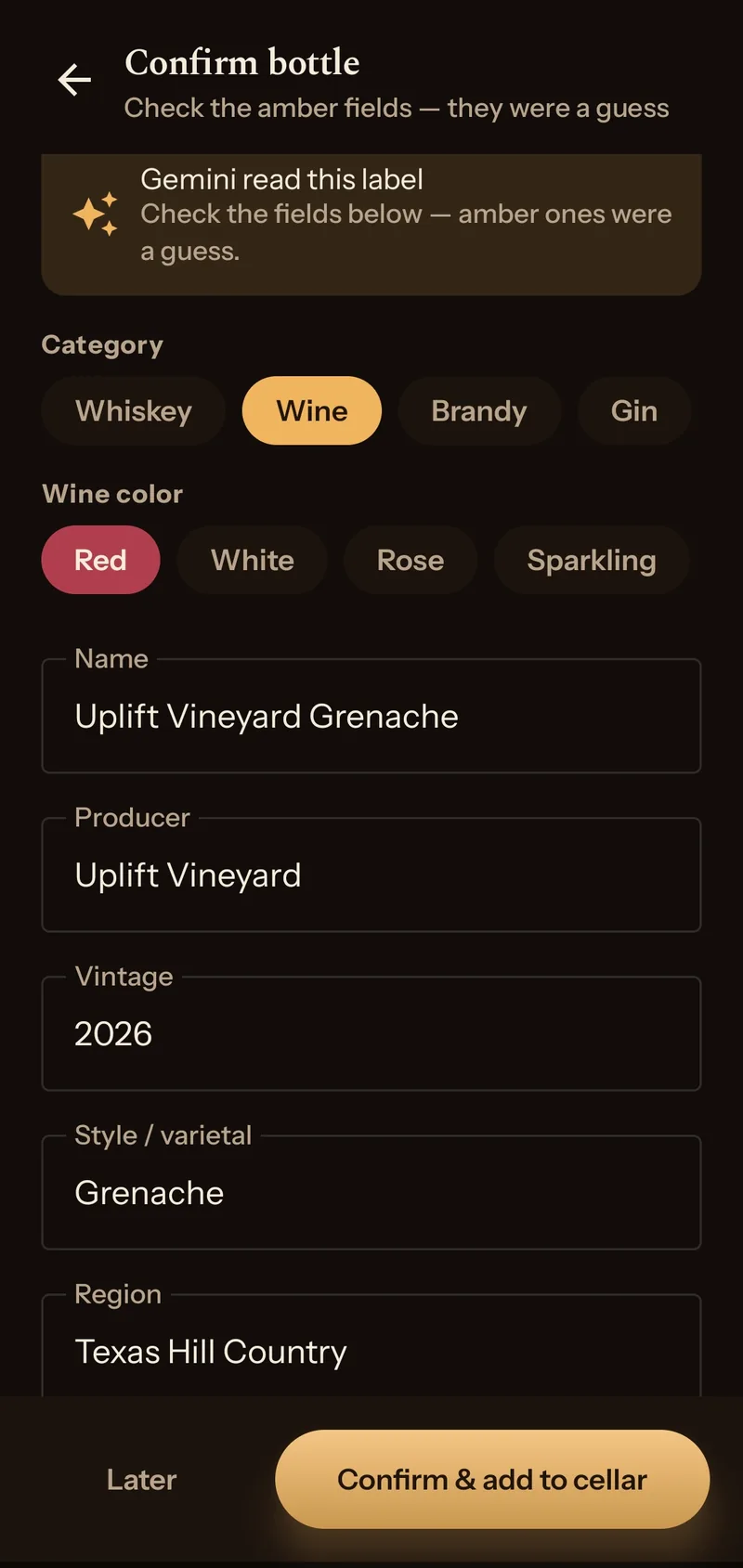
Check the ABV on spirits. The oxidation clock depends on it. Empty, the app assumes the middle proof band.
A wine has a Blend field for its grapes, such as 68% Merlot, 19% Cabernet Sauvignon, 13% Malbec. The scan fills it only when the label prints them, usually on the back. Re-check window uses it. It is on the bottle's page and in the Bottles tab of the backup.
Three fields are never read from the label. Quantity goes from 1 to 99. Price paid is for your reference. Purchase date defaults to today.
Bottle size is read from the label, or starts at 750ml. The app checks the figure against the label text and leaves it amber if it can't confirm it. If the scan missed the size and the label text has exactly one, that goes in, also amber. The field takes 1.75L, 1,75 L, 750 ml or 750.
Re-check window sits under the drink dates. It sends your corrected values, not the photo, and writes back fresh dates with a line saying why. On a wine worth cellaring the button becomes a filled pill suggesting you run it. Edit either date yourself and the window is marked manual, with the scan's dates kept alongside.
A bottle you have owned before gets a Looks like banner with its name, your rating and when you finished it, and two buttons, Add to that record and Keep separate. Adding merges into the old record, photos and notes included. A different vintage never matches.
The footer has Later and Confirm & add to cellar. Later, the back arrow and the back gesture all keep the draft. Only the red Discard bottle further down deletes it, photos included. To resume a draft, open it from the Cellar and press Review & confirm.
Bottles you already own
Backlog bottle is for bottles bought before you had the app. Turn it on and the purchase date becomes month and year steppers, flagged as an estimate.
Your cellar
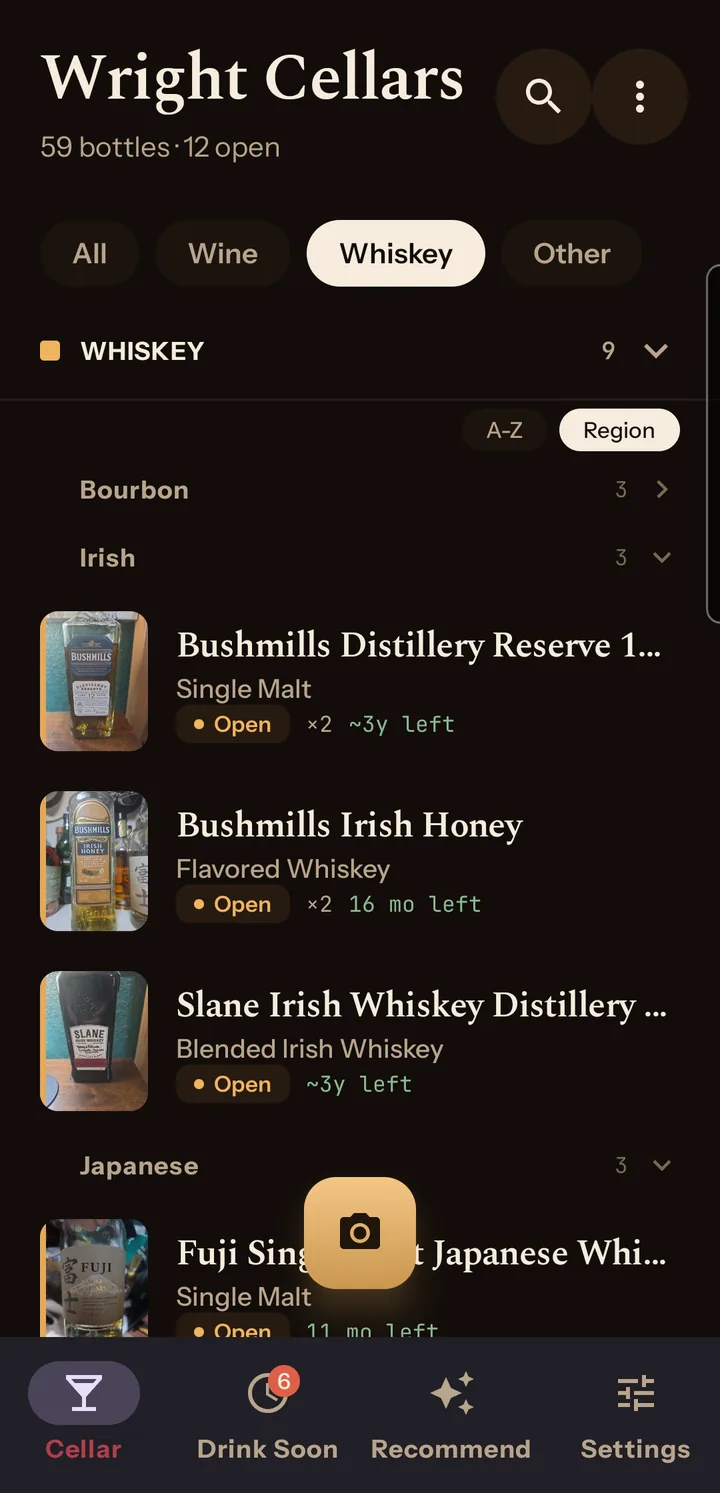
Bottles are grouped as Whiskey, Wine and Other Spirits. Reorder the groups or switch one off under Settings → Appearance → Collection layout. A hidden group drops out of the list and search, but its bottles still count in Drink Soon and What to buy.
A group with more than five bottles splits into sub-groups. Chips under the header switch between A-Z and, for whiskey, Region, which sorts into bourbon, rye, Tennessee, Scotch, Irish, Japanese and Canadian. For wine the second chip is Varietal. The app remembers the mode and the open sub-groups.
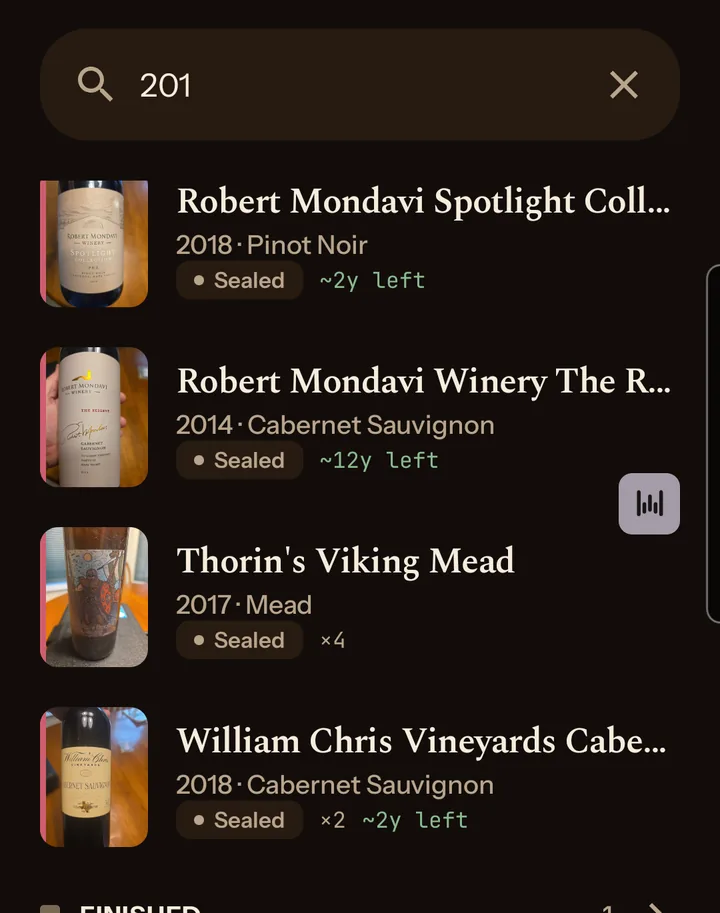
The magnifier searches name, producer, style, region and vintage, finished bottles included, and 201 finds the whole decade. A collapsed section with a match opens.
Finished is its own section at the bottom, collapsed by default. A finished bottle can be reopened, marked sealed again, or bought again.
When something wants drinking, a banner above the list shows the count, with a red second line if anything is past its window. Tapping it opens Drink Soon. The ✕ dismisses it until the counts get worse.
A bottle's detail screen
Tap a bottle to open it. Every field edits in place.
Status
A bottle is sealed, opened or finished. Wine has one button, Mark finished, which also opens the tasting note sheet.
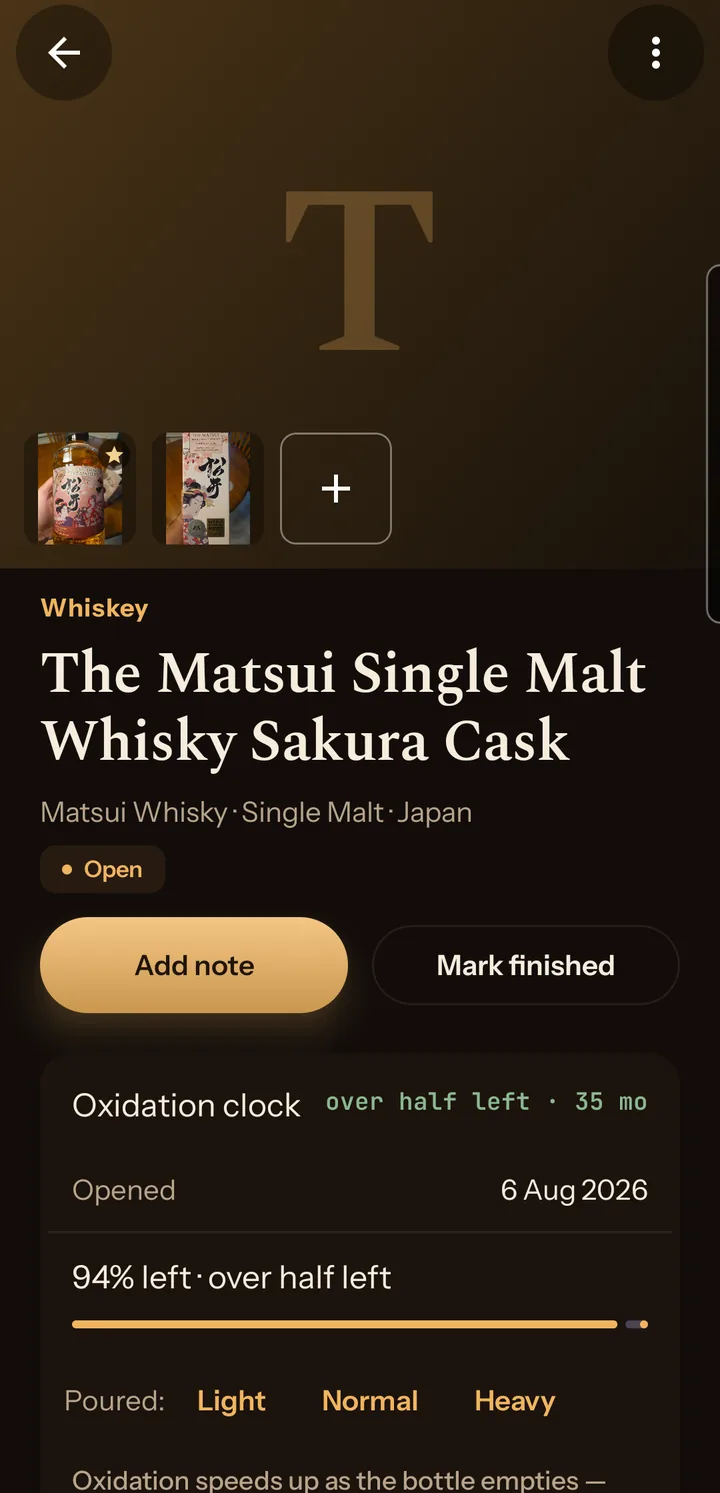
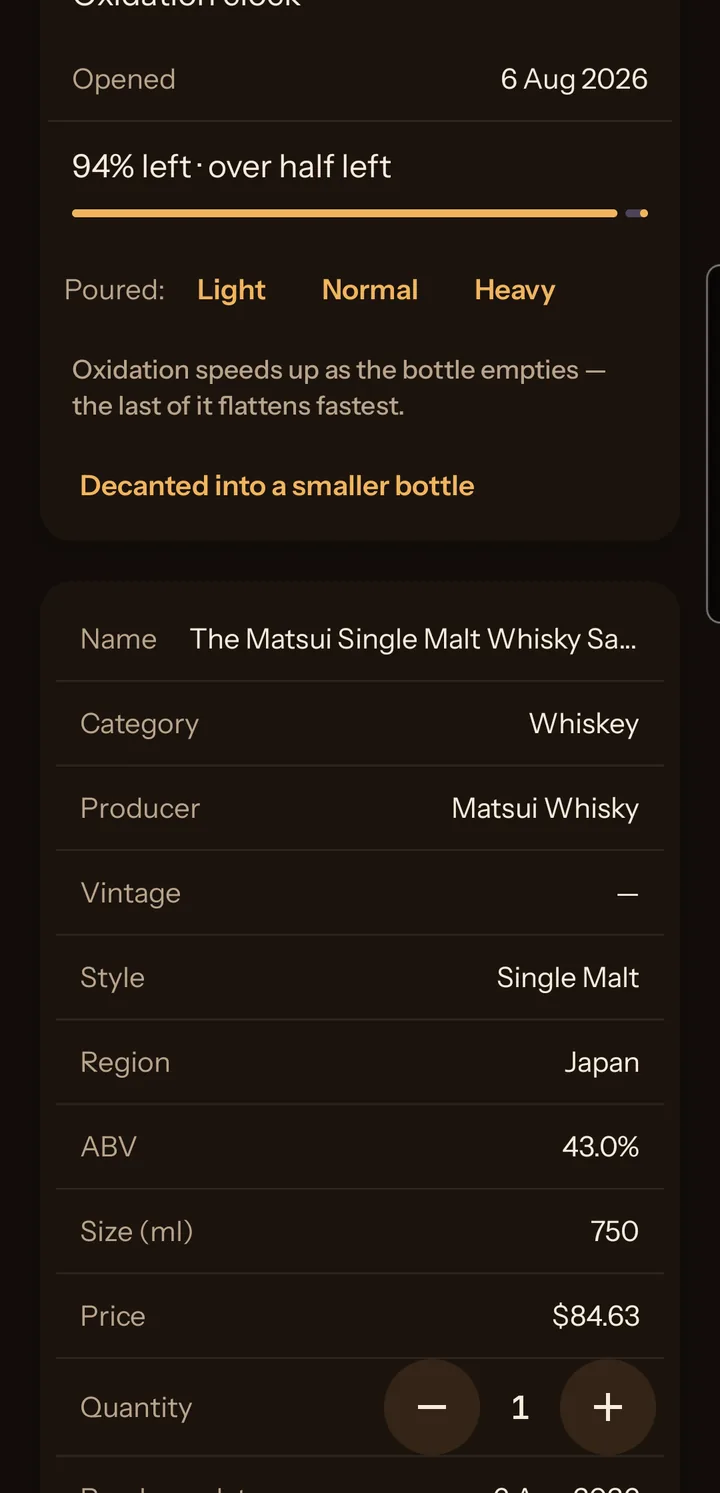
A spirit has Mark opened, which starts the oxidation clock. Once open it has Add note and Mark finished. With a quantity above one, finishing drops the count by one and sets the record back to sealed.
A finished bottle has Bought another, which asks how many and revives the record, plus Add tasting note and Mark sealed. A spirit also gets Mark opened.
A status change leaves a line under the buttons, Marked opened today for instance, with Undo beside it. Undo puts back the status, quantity, opening date and pours. A tasting note saved in between stays. The line goes once you pour or edit the bottle.
Pours and fill level
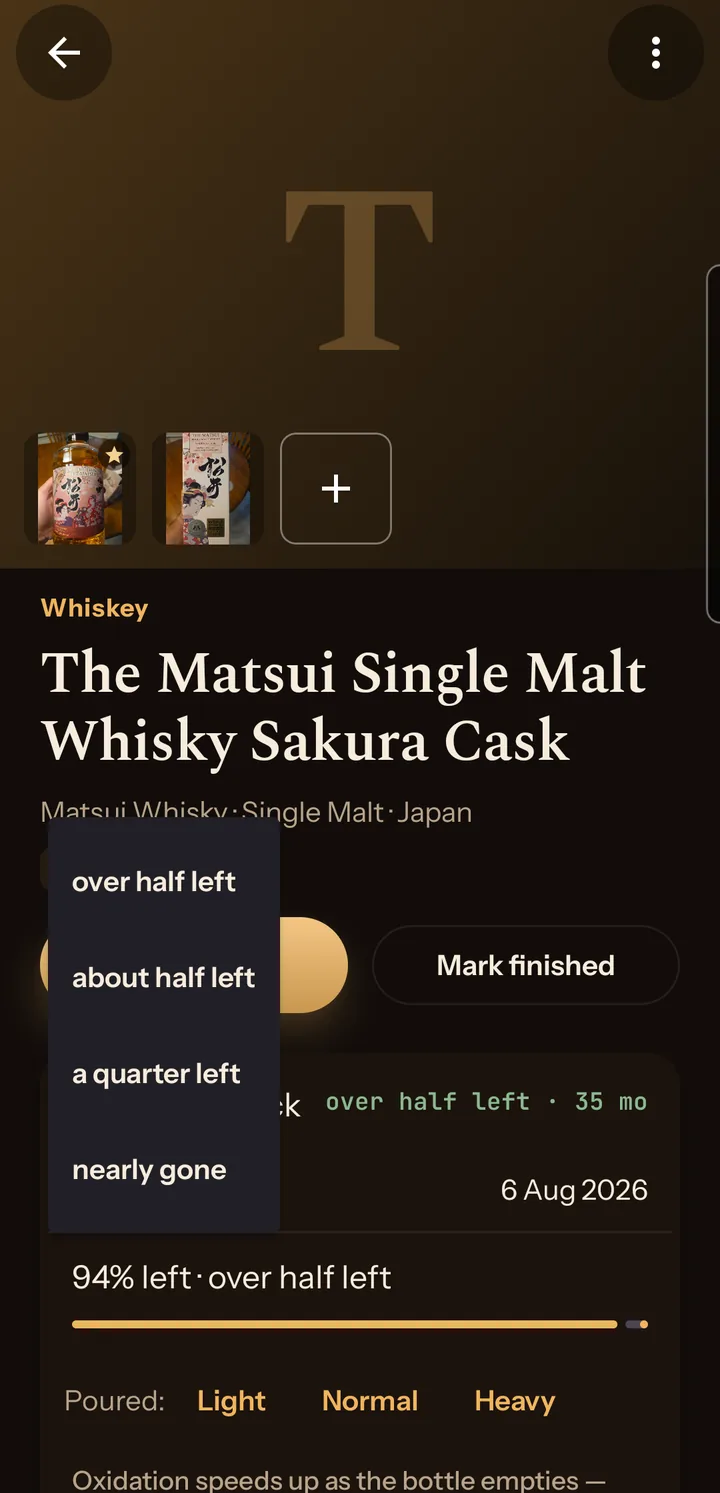
Next to Poured: are Light for 30ml, Normal for 45ml and Heavy for 60ml. Undo appears after a pour. Tap the percentage line to set one of the four fill bands by hand. The oxidation clock page has the full table.
Tasting notes and photos
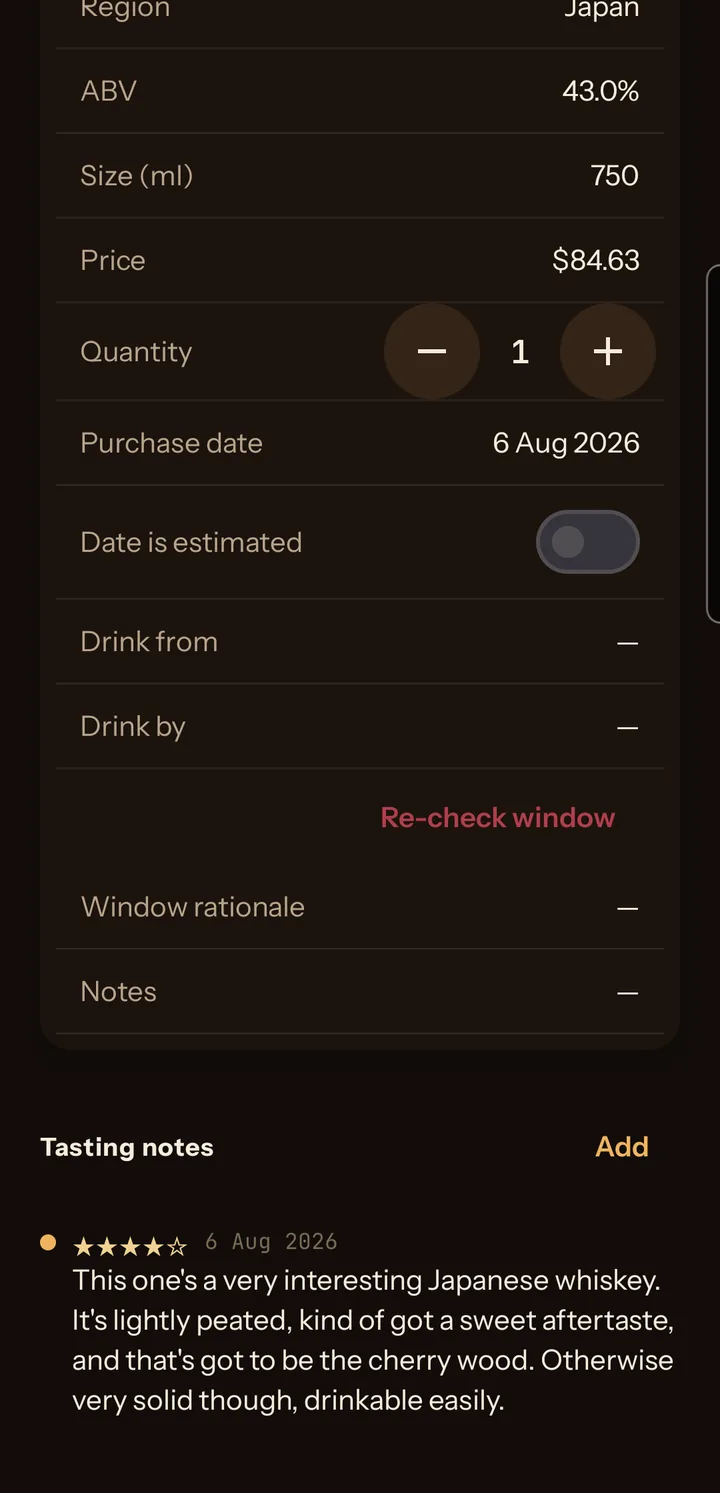
Notes list newest first, each with one to five stars and an optional comment. Save is disabled until you pick a star.
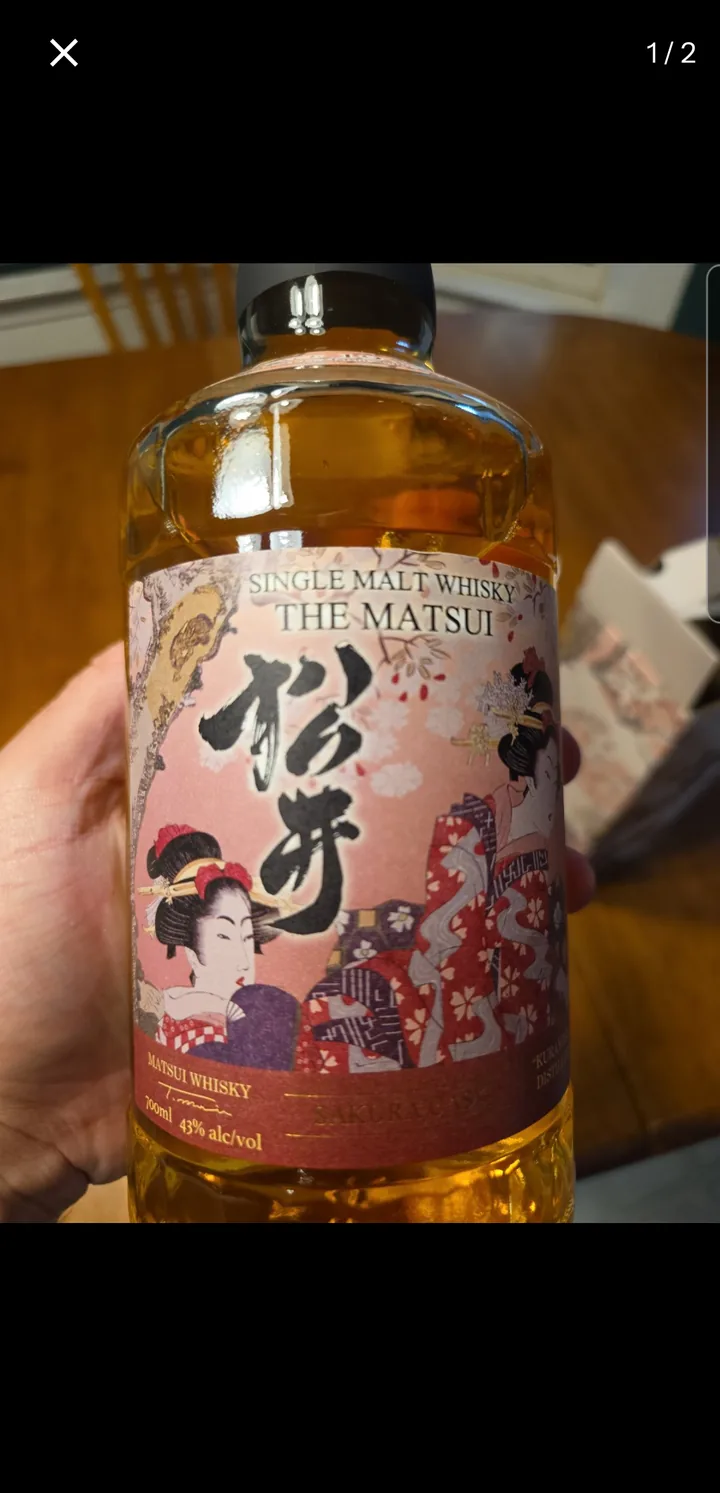
The photo strip is under the header image. Tap a photo for full size, pinch, swipe between shots, or press Make primary to put it on the bottle's tile. The dashed square at the end adds a photo. A scanned back label is tagged BACK, and keeps the tag if you make it primary.
The drink window
Re-check window is the same as on the confirm screen. Editing Drink from or Drink by marks the window manual.
A spirit only sends drink-by alerts if you set the date yourself. The row then reads Drink by (manual) with Clear manual window under it. Clearing removes the date and the alerts. Wine has no manual row.
Decant
At the bottom of the oxidation card is Decanted into a smaller bottle. It asks for the new size in millilitres, starting at 375.
A new record appears with (decanted) on the name, at the size you gave, full, open, with the original opening date and a copy of the primary photo. The old record is marked finished, or if you had sealed bottles of it left, drops one from its quantity and goes back to sealed.
Deleting
The ⋮ at the top right has Delete bottle, behind a confirmation. It removes the bottle, photos and notes from the phone, not from Drive. The data deletion page covers Drive.
Drink Soon
Bottles close to their date or past it, sorted by time left, wines and open spirits together.
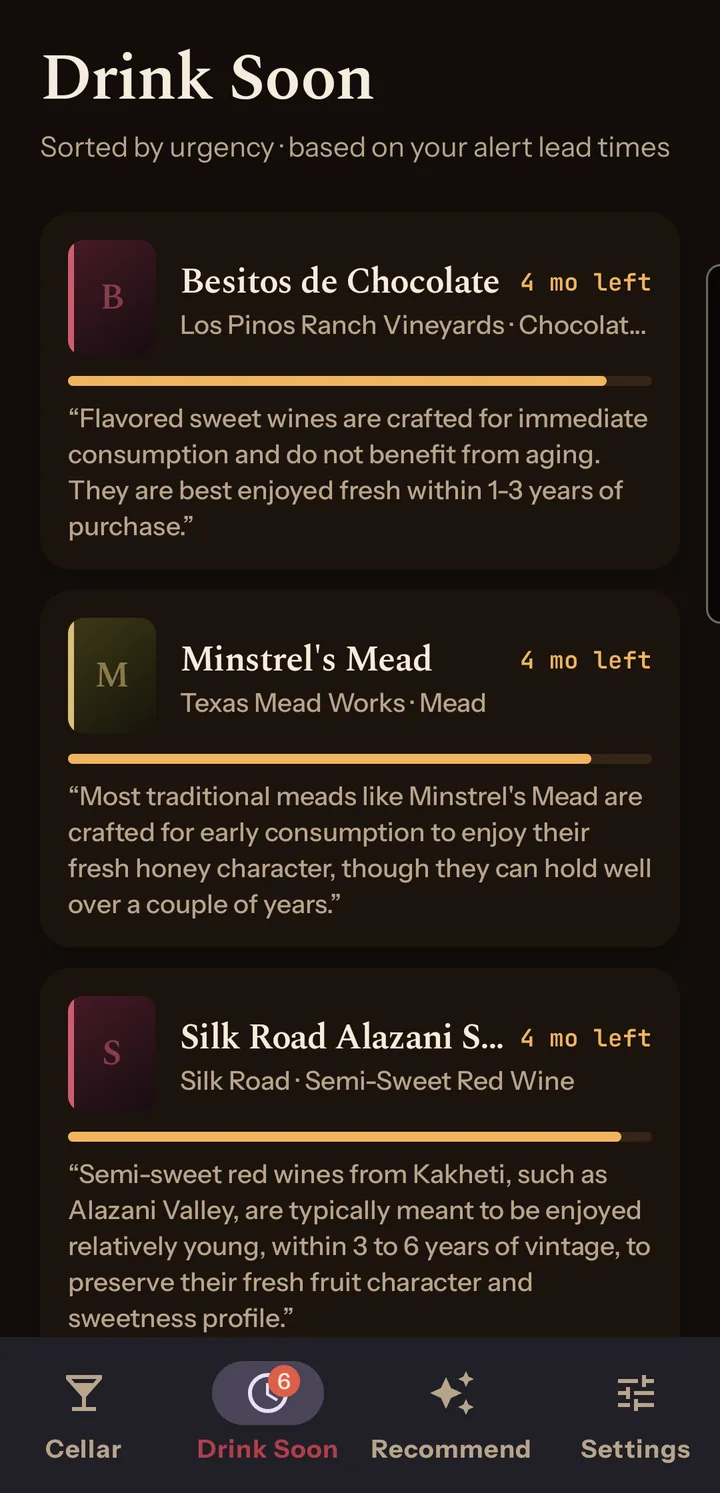
Past-date bottles sit at the top under a red PAST WINDOW heading with a count. Below, the amber section gives each bottle a progress bar, the months left and the reasoning behind its date. For an open spirit that means time since opening.
Set how much warning you get under Settings → Alert lead times, one month to thirty-six. Whites & rosé default to six months, Reds to twelve and Spirits to three. The spirits figure applies only to a drink-by date you set yourself.
A check runs daily at ten in the morning, local time, and notifies you when a bottle enters its window and again when it goes past. Tapping either opens this tab.
Recommend
Four tabs. Two use the AI service, two run on the phone.
Open tonight
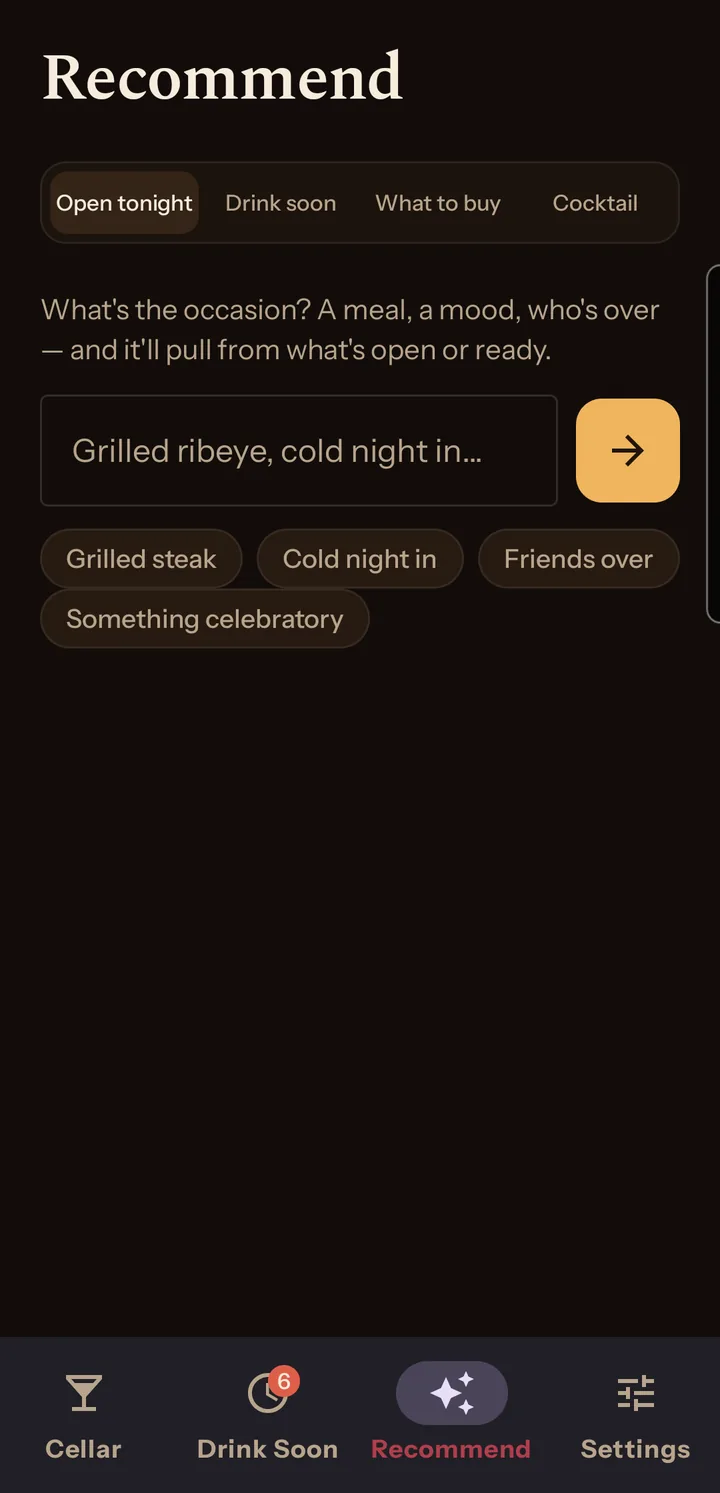
Type an occasion, or tap Grilled steak, Cold night in, Friends over or Something celebratory, then press the arrow. You get two or three bottles from your shelf with a line on each. Tapping a card opens the bottle when the app can match it. Every run calls the AI service and needs at least one bottle in the cellar.
Drink soon
The same list as the Drink Soon tab. No AI call.
What to buy
Runs by itself when you open the tab, once you have about five bottles. It looks for gaps in your collection, weighted toward the styles and regions you rate highest, and returns three to five suggestions. The answer is kept until your collection changes.
Cocktail
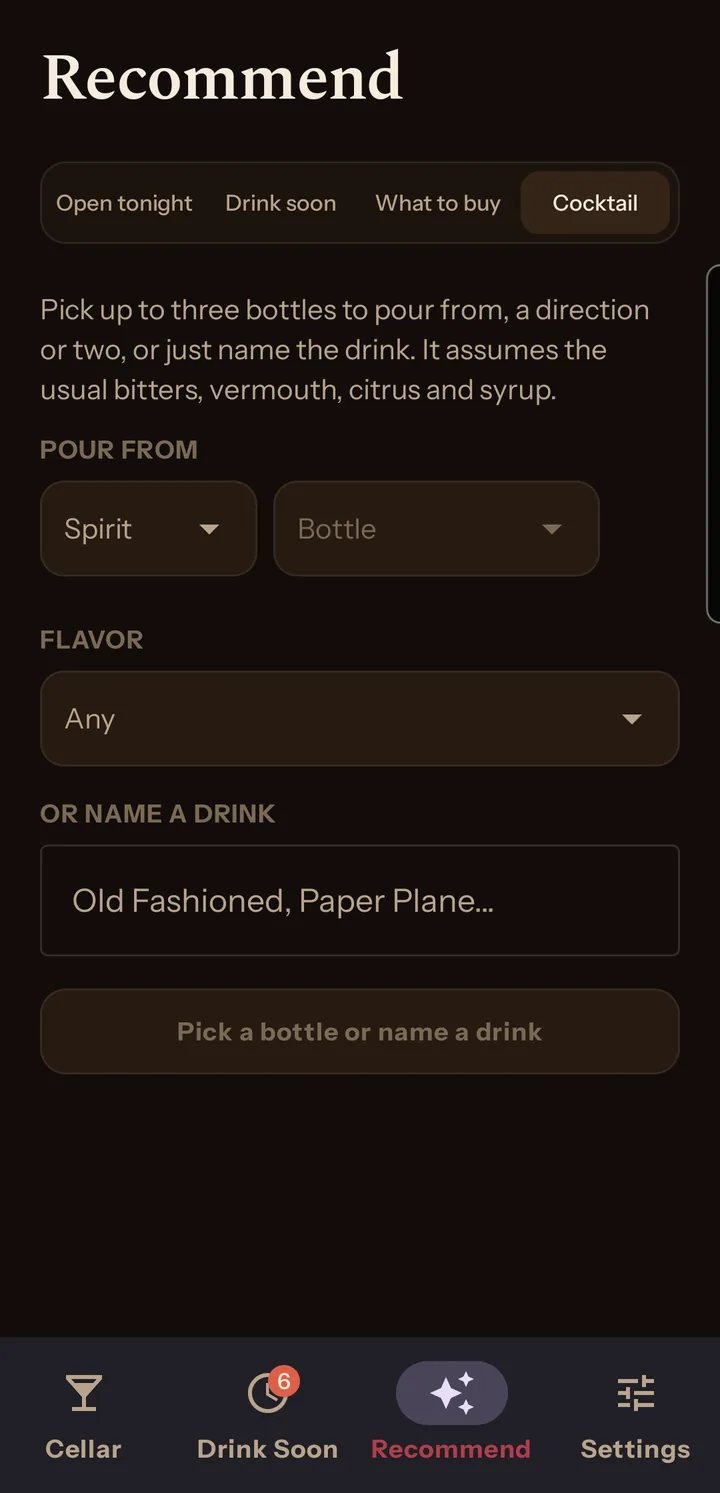
Under POUR FROM, pick a Spirit, then a Bottle from that category. Add another spirit gives you up to three rows. Wine is not offered.
Under FLAVOR, pick up to three directions, or Any. Or type a drink under OR NAME A DRINK, which works with no bottles picked. Then Suggest a cocktail, or Get the recipe if you named one.
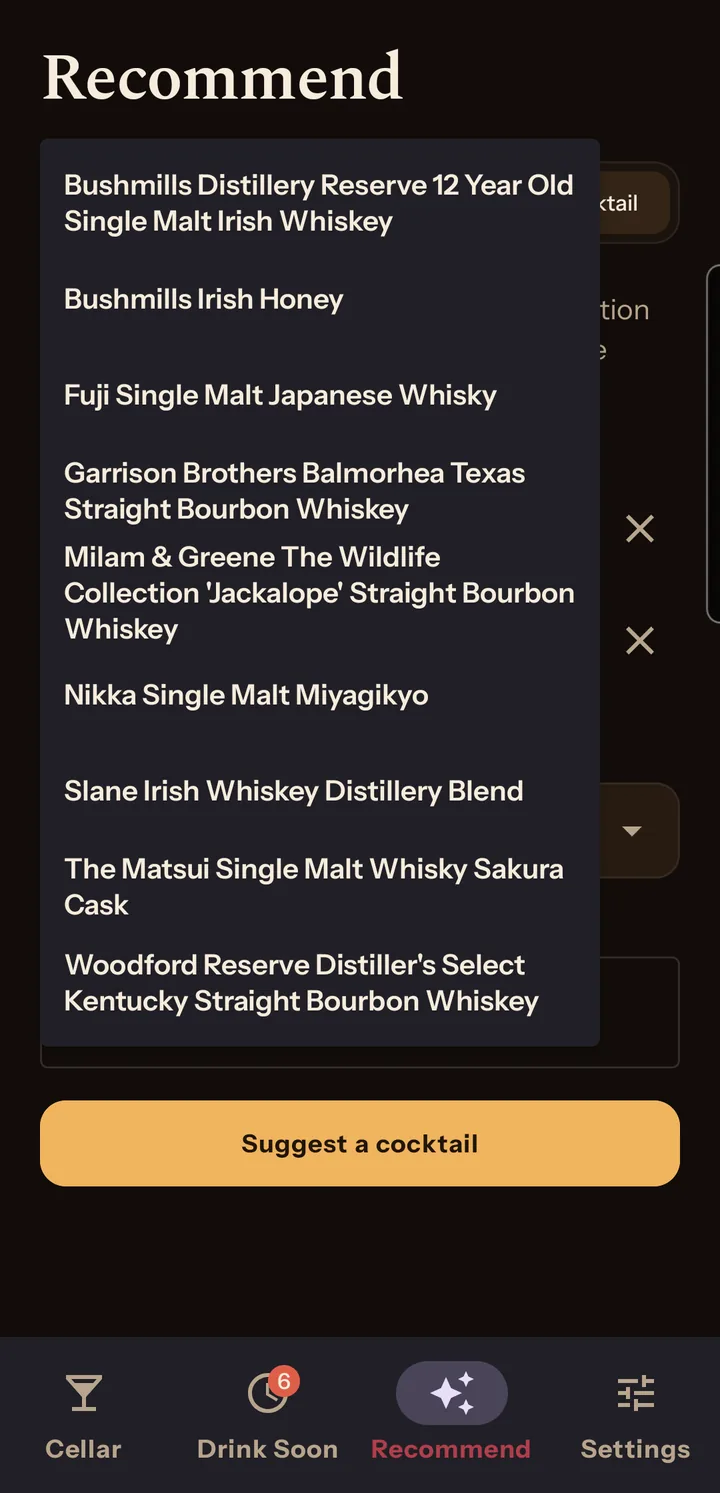
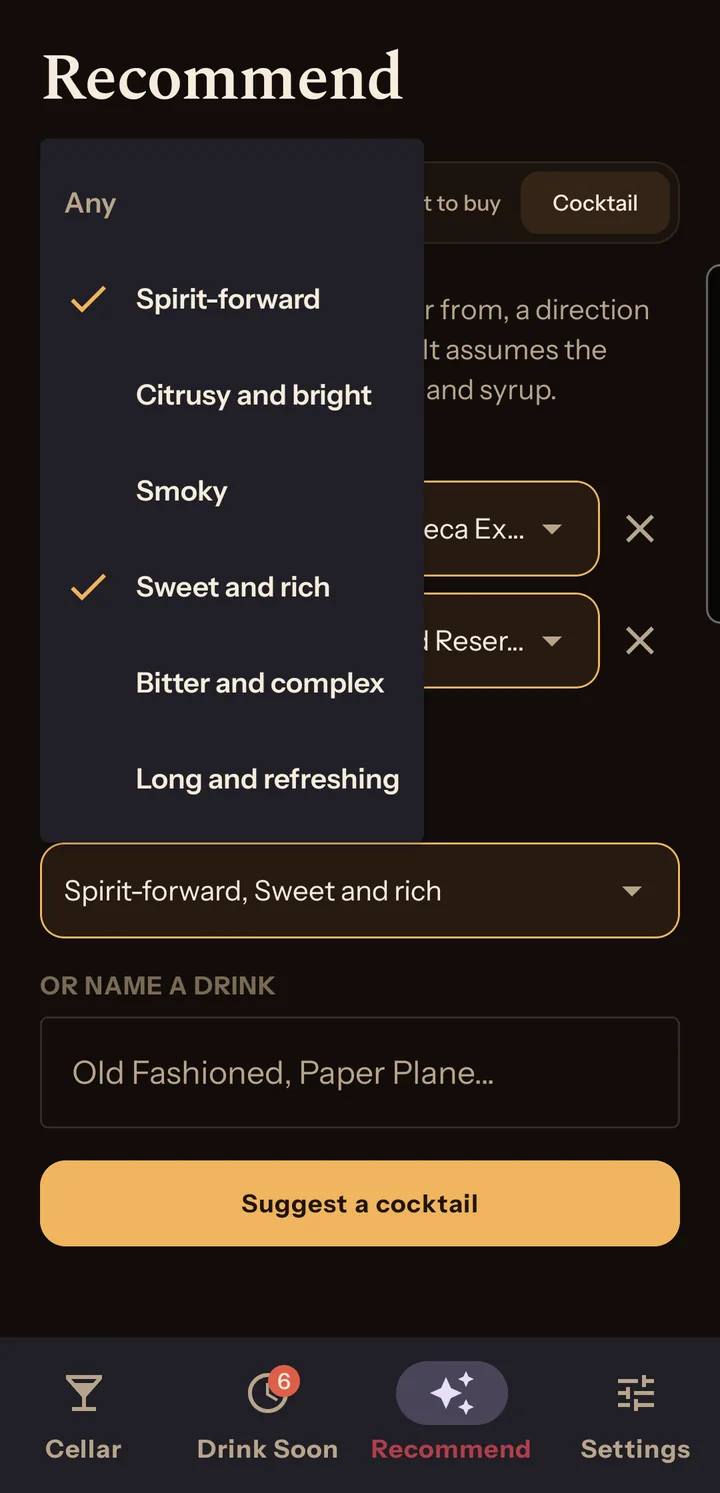
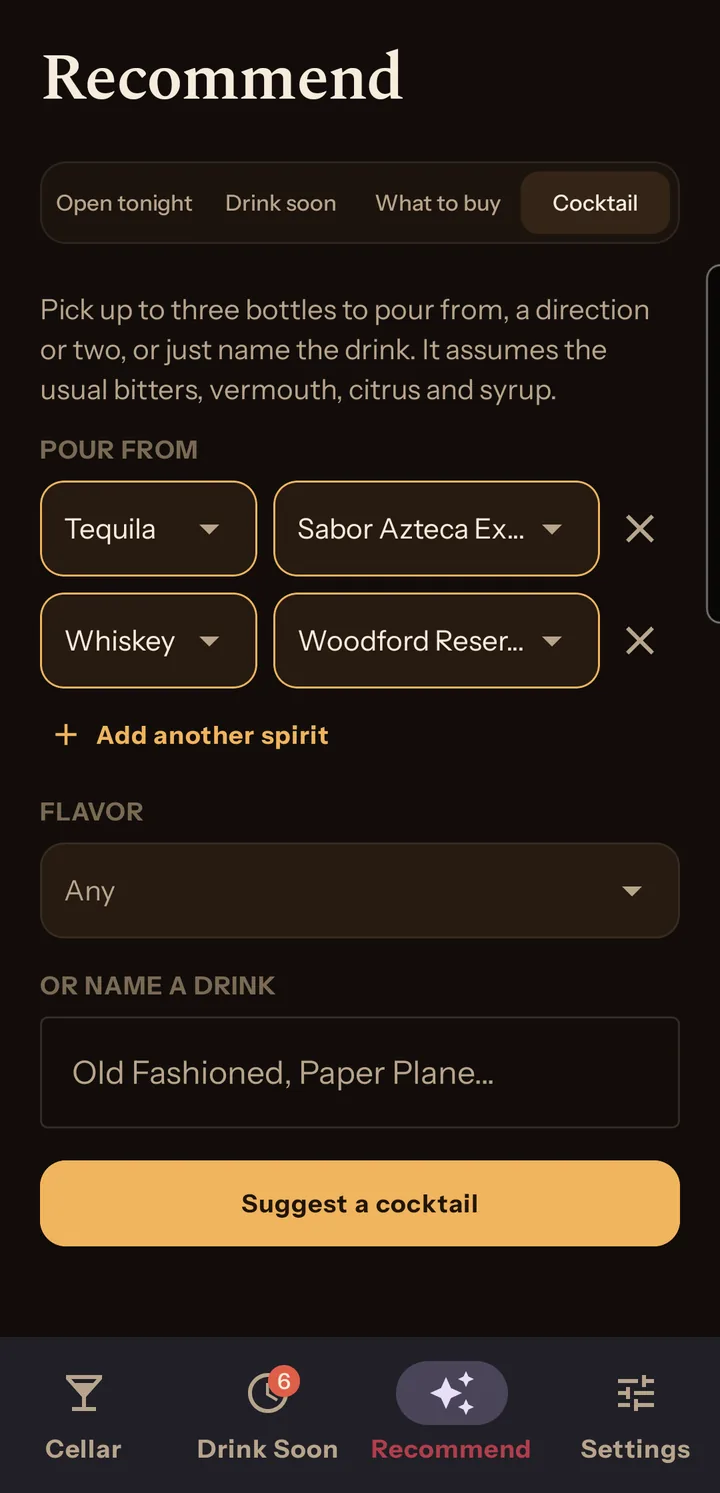
The answer is its own page with two or three recipes. FROM YOUR BAR is which of your bottles it uses, and tapping one opens it. ALSO NEED is what to buy. Angostura bitters, sweet and dry vermouth, lemons and limes, simple syrup, sugar, soda water and ice are assumed on hand.
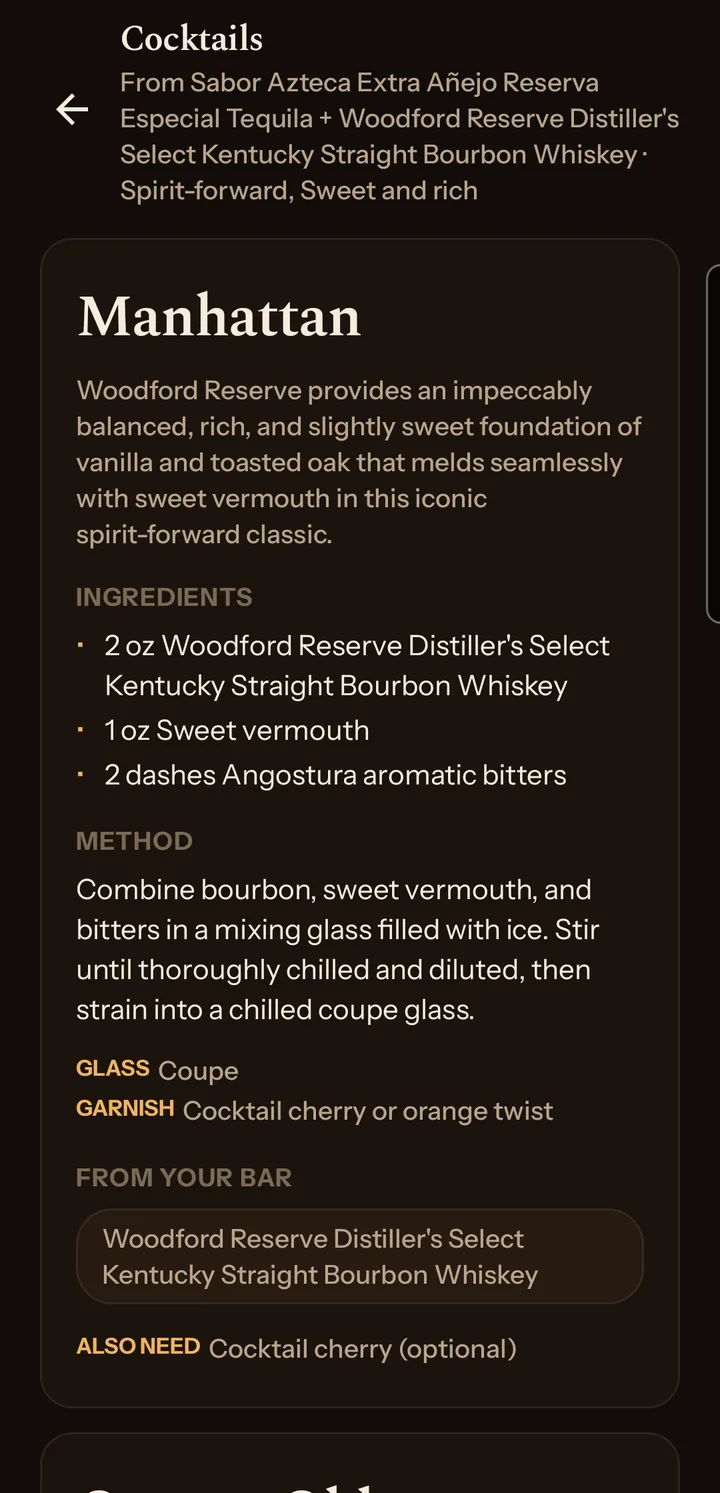
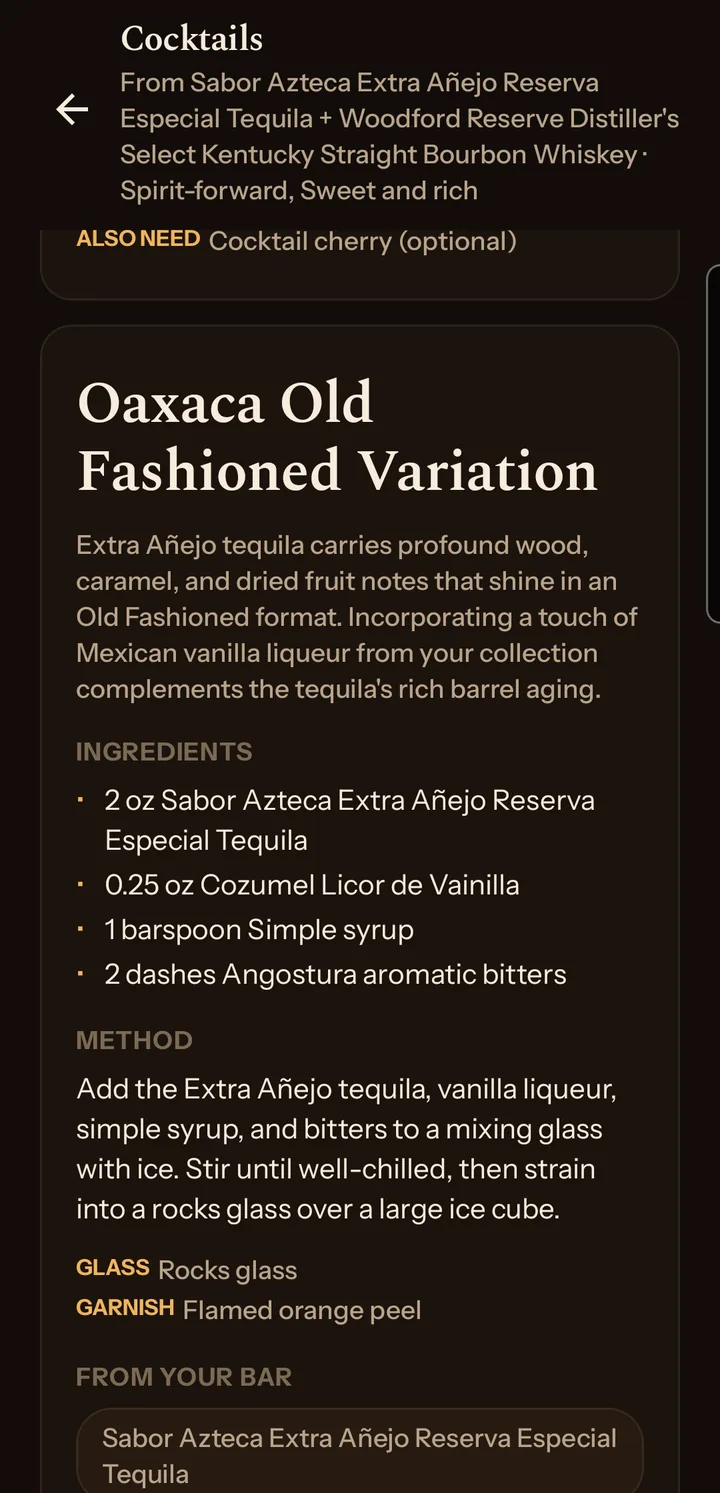
Back returns to the picker with your selection intact. Answers are not kept, so asking again is another call.
Backup and restore
Settings → Sync & backup → Connect asks Google for one permission, limited to files the app created. The row then reads Connected · Drive backup on. The app never sees your email address.
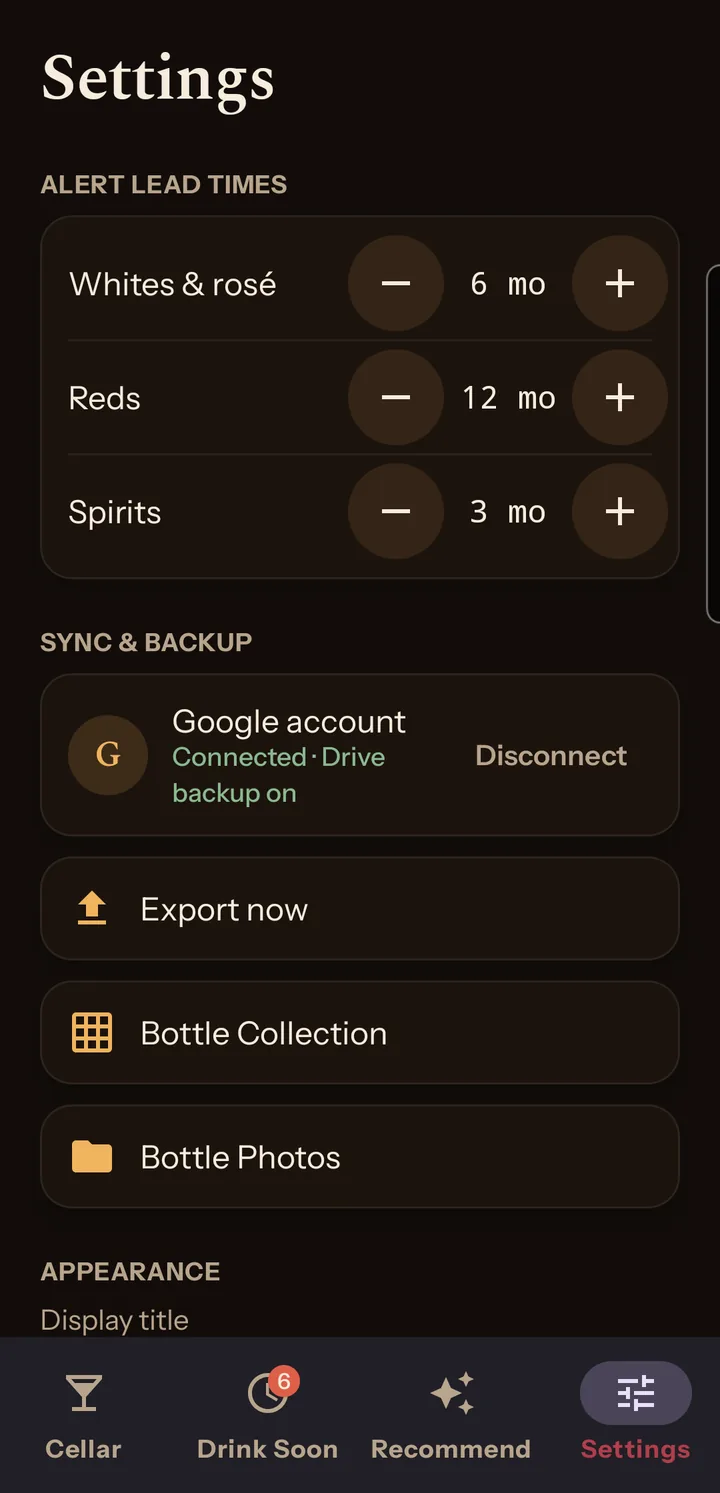
Your collection goes to a spreadsheet called Bottle Collection in your Drive, with a Bottles tab and a Tasting Notes tab, and photos to a folder called Bottle Photos beside it. Settings links to both. A hidden tab holds a machine-readable copy of everything, and a restore reads that.
Exports run about half a minute after a change, once a day with the alert check, and on first connect. Export now runs one immediately. It is disabled when disconnected or the cellar is empty. Each export overwrites the whole sheet, including anything you typed into it.
Restoring on a new phone
Install the app, connect the same Google account, and Restore from Google Sheet appears in Settings while the cellar is empty. It rebuilds bottles, tasting notes and settings from the hidden tab, downloads the photos back from Drive, and reports what it restored. A photo that fails to download leaves its bottle without it.
Disconnecting
Disconnect stops the app using your account but leaves the permission at Google. Withdraw that at myaccount.google.com/permissions.
Deleting a bottle, disconnecting and uninstalling all leave the Drive files in place. The data deletion page covers removing those.
Settings
Alert lead times and Sync & backup are covered above.
Appearance has Display title, Colour scheme and Collection layout. All three themes are dark.
AI service is where you paste your own Gemini API key if you would rather your traffic went straight to Google than through the service I run. Press Save key and the app checks it with Google. Clear the field to go back to my service. The bring your own key page has the details.
Help has How Dram+Vine works, the four pages from the first run.
When something goes wrong
You're offline. Label reading needs a connection. Use Enter one manually or try later.
The daily limit is used up. Only on your own key. Google's free tier resets at midnight US Pacific, and the app stops calling until then. A scan caught by this is retried later. Billing on the key removes the cap.
Couldn't read this label. The photo was blurry, at a steep angle, or not pointed at the label. Retake it, or fill the form in yourself.
A bottle stuck on pending. A scan failed and left a draft in your cellar. The app retries drafts on launch, on return and on regaining a connection. To do it now, open the bottle and press Review & confirm.
Anything else. Email me at dramvine@gmail.com.
Back to top